Getting started
This guide follows the live onboarding path in the TLC admin. Synthetic examples use @example.test emails only.
1. Create an account and register an organization
When sign-up is open for your environment, create a work account with email and password. Better Auth stores staff identities in your org's Postgres database. TLC does not use Supabase or hosted third-party auth for PHI environments.
After the first login, onboarding collects:
- Organization legal name and slug
- Your role (owner, admin, marketer, support, or analyst)
- Acceptance of the business associate agreement (BAA) gate before any patient import
If sign-up is invitation-only, your brand admin sends an invite link instead.
2. Create a brand
Each organization can hold multiple brands. A brand is the tenant boundary for profiles, sends, domains, and integrations. URLs use the brand slug only (/app/<brandSlug>/…), never patient identifiers.
From onboarding or Settings, add a brand name and slug. Enable discreet mode if subjects and preheaders must never name a treatment on lock screens.
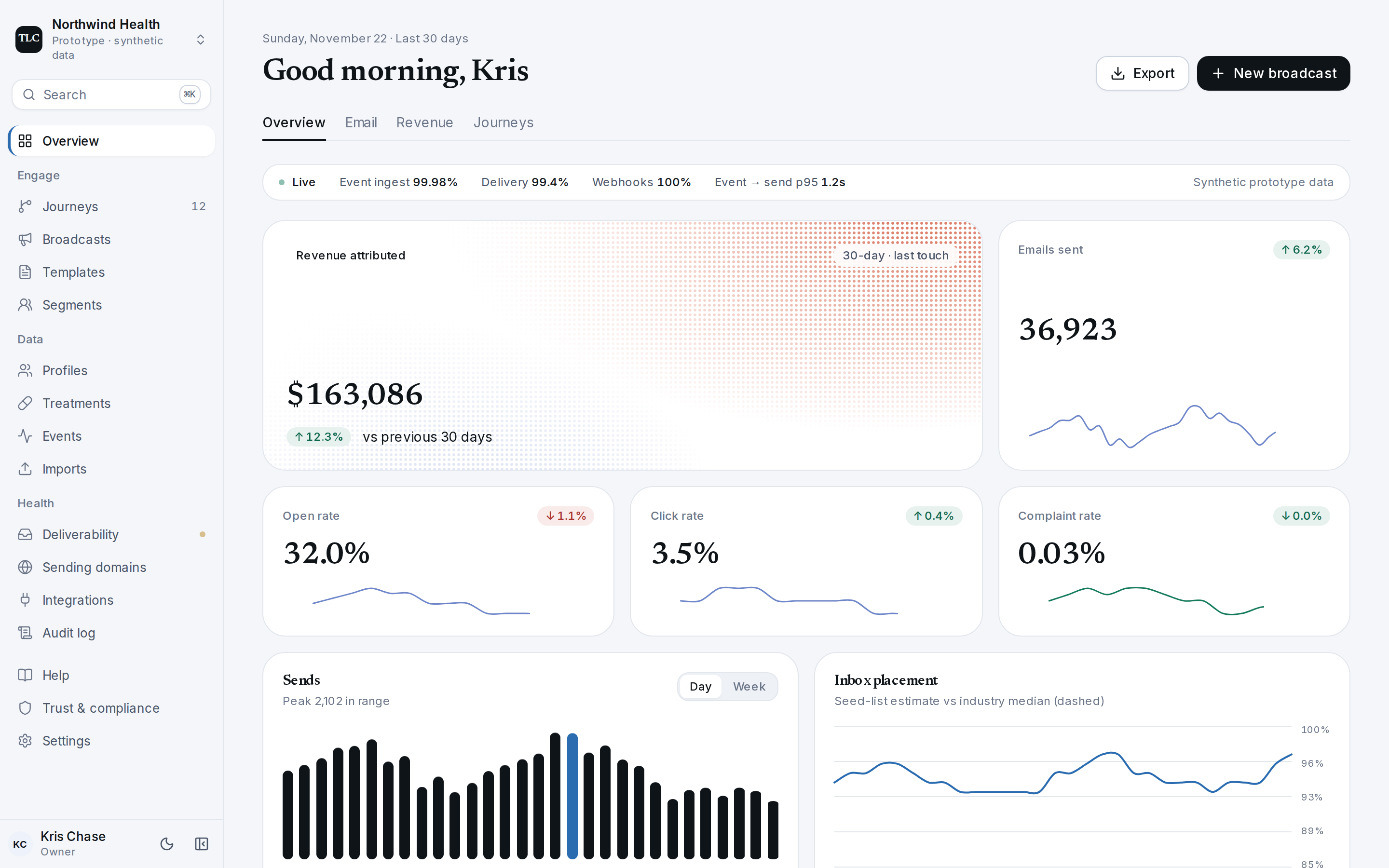 Overview dashboard with sample metrics
3. Verify a sending domain (DKIM, SPF, DMARC)
Before production mail, open Sending domains and add the domain you will send from (for example mail.clinic.example.com).
TLC shows DNS records to publish:
| Record | Purpose |
|---|---|
| TXT (SPF) | Authorizes the SES sending pool for your domain |
| CNAME (DKIM) | Signs messages with rotating keys |
| TXT (DMARC) | Publishes your alignment policy |
Status moves from pending → verifying → verified. Until verified, tests may use the stub mailer in non-production stacks.
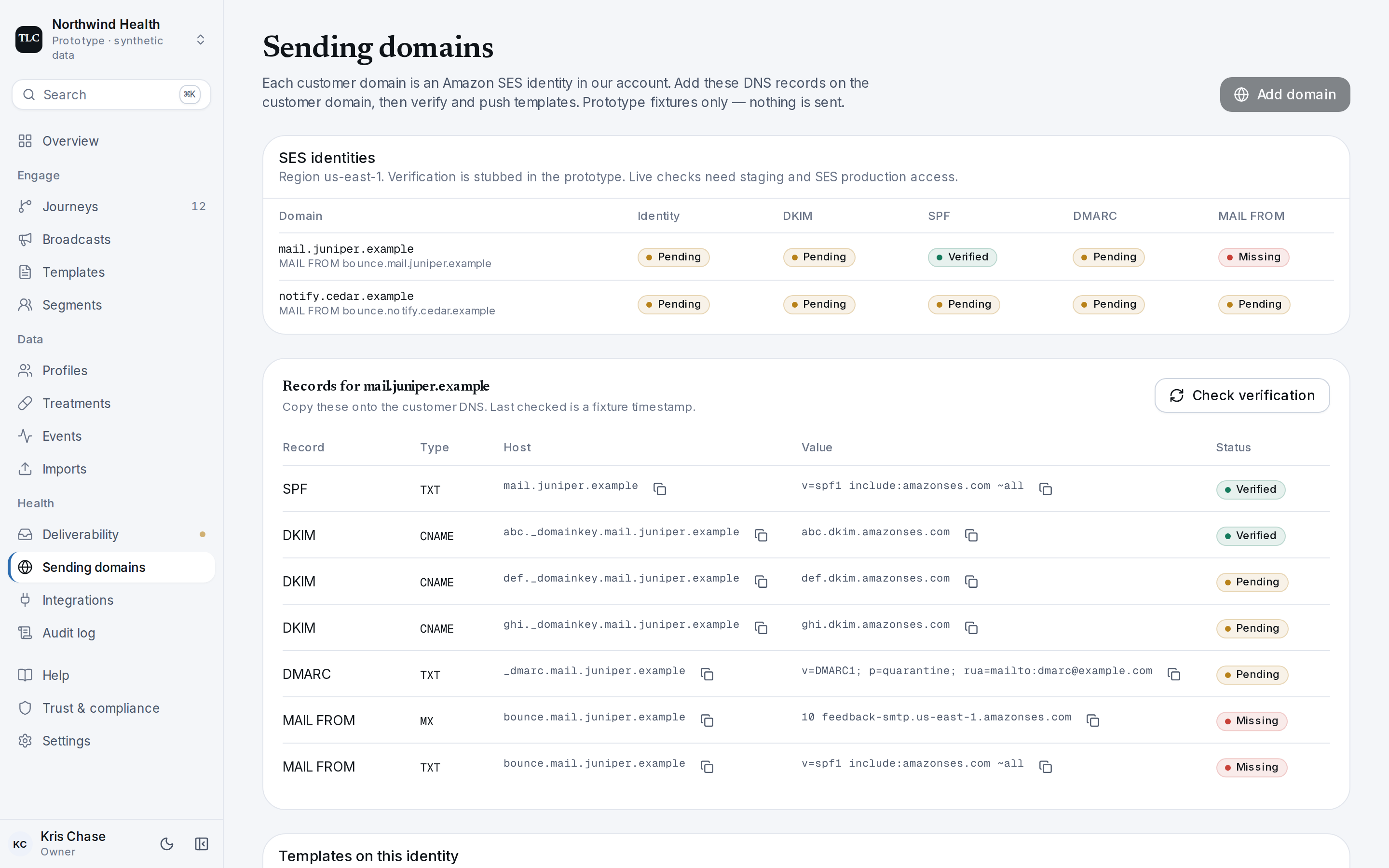 Sending domains DNS checklist
4. Invite your team
Owners and admins open Members to invite colleagues. Roles control shell visibility and destructive actions:
| Role | Typical access |
|---|---|
| Owner | Billing, BAA, MCP token minting, all writes |
| Admin | Brands, domains, imports, journeys |
| Marketer | Journeys, templates, broadcasts |
| Support | Profiles (masked), events, audit read |
| Analyst | Read-only analytics and deliverability |
Invites expire; resend from the same screen if needed.
5. Send your first test
- Connect a backend under Integrations (Bask fixture or generic webhook in sandbox).
- Create a template draft with synthetic merge fields only.
- Start a journey on a launch event such as
lead_capturedor use a one-off broadcast to a test segment. - Use the preview / test action in the template editor. Stub environments record the message without delivering to the public internet.
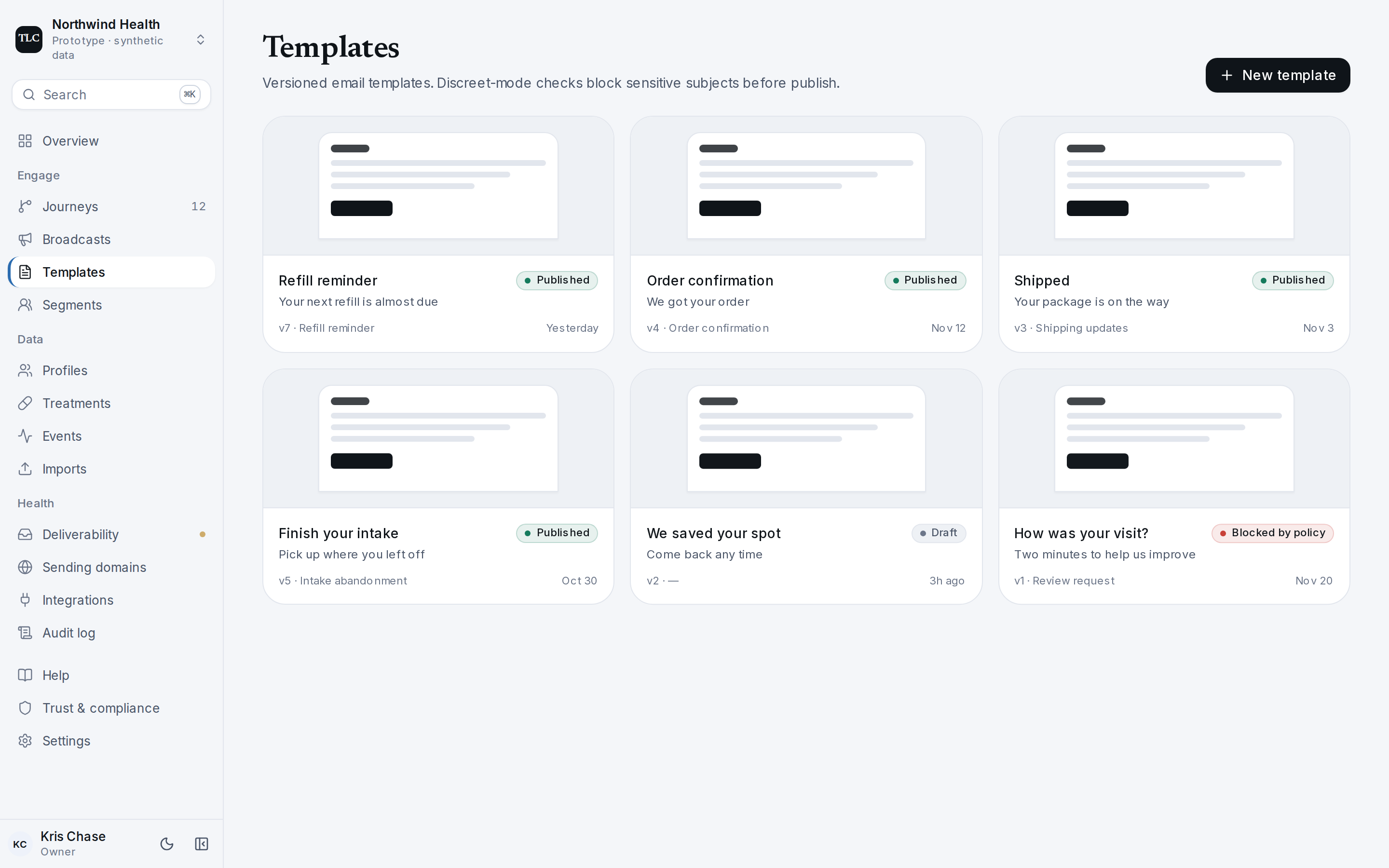 Templates list
Next steps
- Imports from CSV, Bask, or Customer.io
- MCP tokens for AI-assisted editing
- Trust & compliance for BAA and consent tracking